30% off on product page · save $187.48
How to Connect Your Phone to a Smart Projector
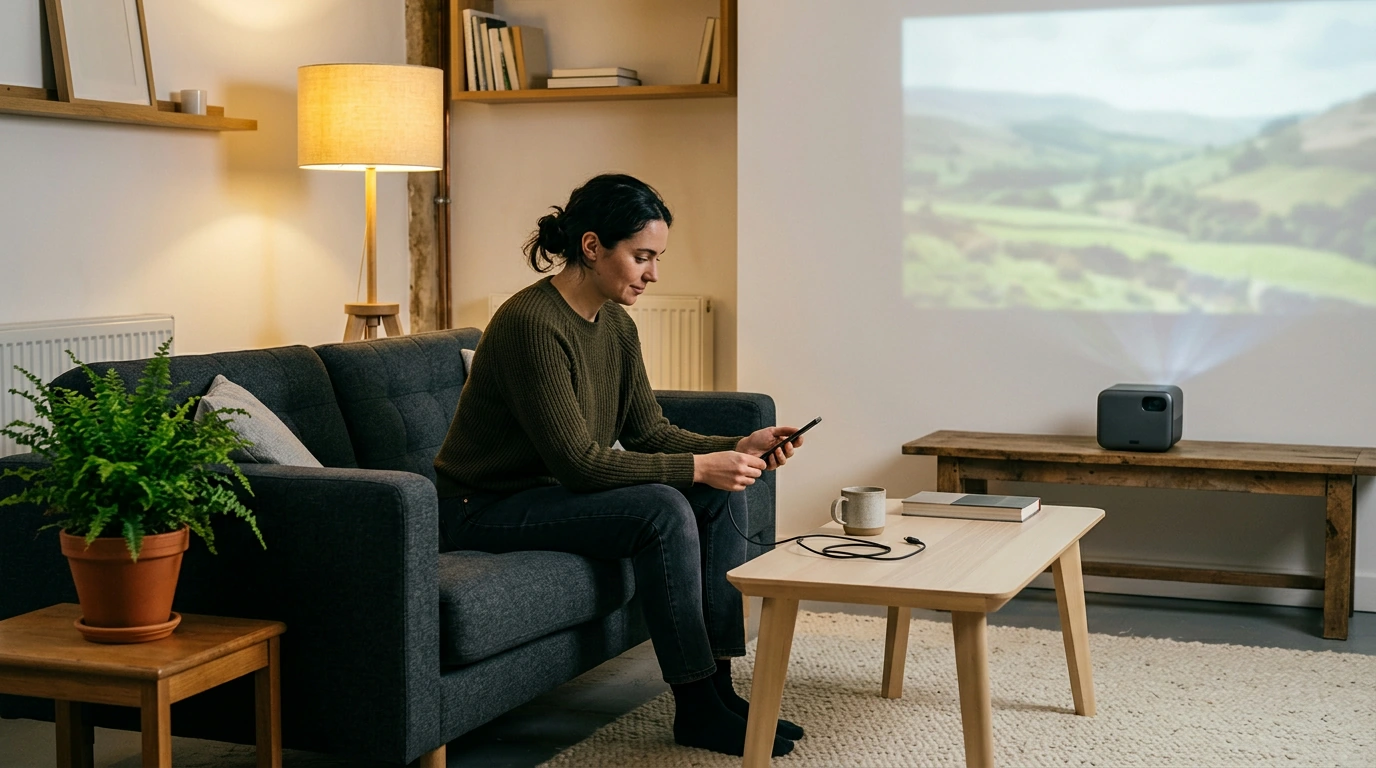
If your projector supports screen mirroring, connect your phone and projector to the same Wi-Fi network, then open the projector’s mirroring or casting screen and follow its on-screen directions. On an iPhone, look for Screen Mirroring in Control Center; on an Android phone, look for a Cast, Screen Cast, or Smart View option, though the name and available devices vary by phone.
Select your projector from the list on your phone and approve any connection request that appears on either screen. If you cannot find the projector, confirm that its mirroring feature works with your phone’s casting method, since being on the same Wi-Fi network does not guarantee that every device can mirror to every projector.
Check the product’s listed specifications when evaluating start with a wireless connection.
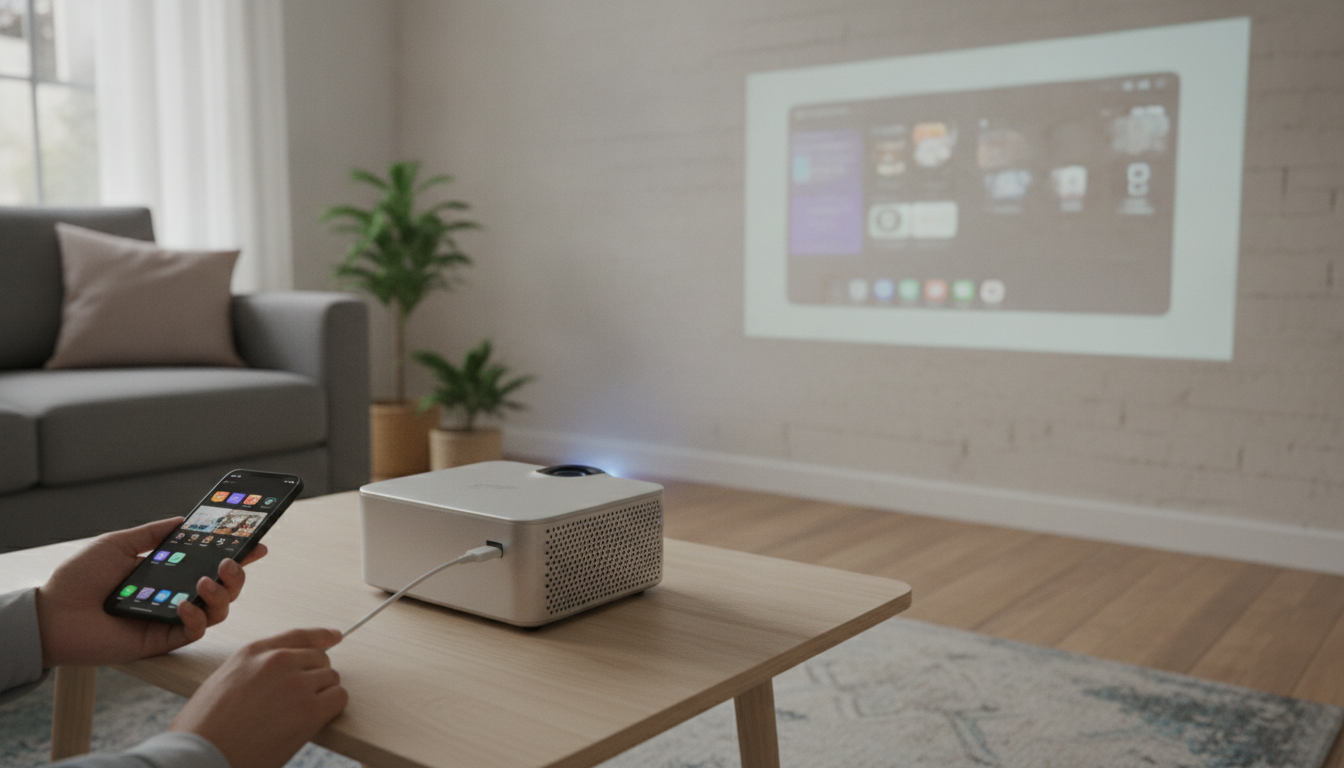
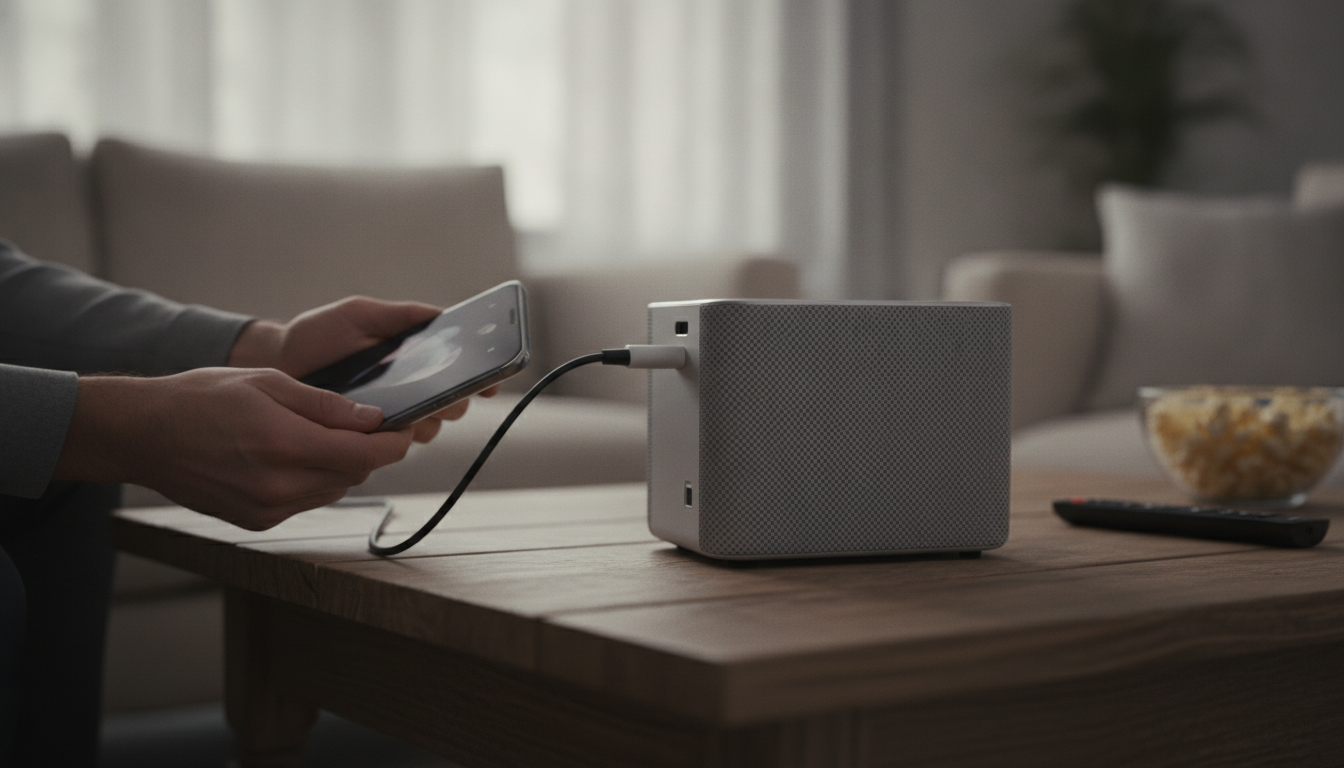
A wired connection can be an alternative if wireless mirroring is unavailable: identify your phone’s connector and the projector’s video input, then choose a compatible cable or adapter for those connections. Many projectors use HDMI for video input, but your phone and adapter must also support video output; a charging cable alone will not necessarily send a picture.
Once everything is connected, turn on the projector and select the matching input from its source menu. If you see no picture, reseat the connections and confirm that the adapter is designed to carry video from your particular phone, rather than only provide power or transfer files.
Featured in this guide
1080p Full HD Smart Projector with 4K Support, WiFi, and Bluetooth
Screen mirroring shows what is on your phone, while an app’s casting button may send supported content to a compatible receiving device instead. Some streaming apps restrict mirrored or adapter-based playback, so test the app you want to use before settling in for a movie.
Our 1080p Full HD Smart Projector with 4K Support, WiFi, and Bluetooth is an option to explore if you are shopping for a smart projector. The right phone connection method depends on the projector’s supported inputs and casting features as well as your phone, and Bluetooth should not be assumed to carry the video picture.
Watch · product page video
“This smart projector is a dream come true! Full HD, 4K support and wireless connectivity – it’s just perfect for my home cinema nights.”
Plushoria product page · Product review
Yes, you can connect many phones to compatible smart projectors using wireless casting or a suitable video cable and adapter. The available method depends on the phone’s video-output support and the projector’s inputs or wireless features.
Your devices may be on different Wi-Fi networks, use incompatible casting methods, or need the correct projector input selected. For a wired connection, also make sure the adapter supports video output from your phone and that the cable is firmly connected.




Leave a comment